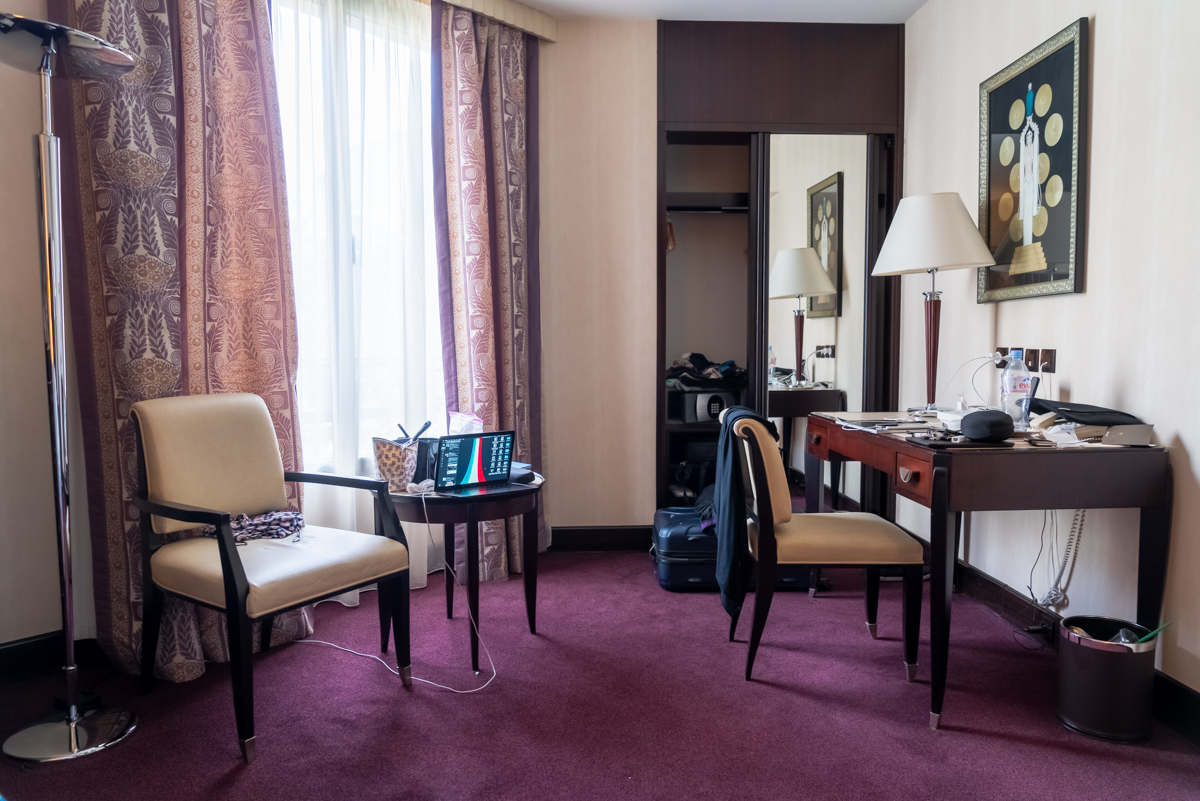
 Hotel du Collectionneur | 51-57 Rue de Courcelles | 75008 Paris, France
Incremental Improvement
This year brought a ton of tweaking to my photography workflow. Most of it was focused on backups, but the whole thing was sparked by new gear and realizing that my old system was held together by habit, anxiety, and duplicate files.
It still does not feel quite there yet, but it is a vast improvement over how I started 2018. The goals are simple: protect the RAWs, make the JPGs easy to browse and share, and reduce enough chaos that I keep shooting and editing.
In-Camera
I made the jump from a Sony Alpha 7R to a Sony Alpha 7R III and could not be happier. It took me a while to figure out how I wanted to use dual-card slots. Right now, I am writing RAWs to the fast slot and Extra Fine JPGs to the slower slot.
I have read a ton of posts about this kind of configuration, both positive and negative. Let me be clear: I edit in RAW only. If I lost the RAWs, I would be devastated. The JPGs are bonus.
If I were out shooting and somehow ran out of space on the primary card, I would not think twice about formatting the JPG card and using it for a second batch of RAWs. That has not happened yet, but it would be a no-brainer. The RAWs are the work. The JPGs are useful, but expendable if they need to be.
Back Home (or, “wherever the laptop is”)
Once I am done shooting for the day and back wherever the laptop is, I plug in the camera via USB-C.
I love this about the a7R III. The transfers are so fast, and I never have to take the cards out. That sounds minor until you have burned yourself by forgetting to put a card back in the camera, or by losing images because of some weird card reader issue. No more.
Once the files are transferred from the camera, I back up the RAWs to a SanDisk 500GB portable SSD if I am on the road. If I am at home, they go directly to a Synology DS216J NAS.
That is the first pass: get the RAWs somewhere safer than the camera. Everything after that is redundancy and access.
Cloud Services (or, “this is where things get complicated”)
This is where the JPGs come into play. The batch gets uploaded to Google Photos.
There are a few reasons this works for me, but the main point is that I can see everything I shot on multiple devices. I can preview images anywhere and share unedited selects with family, especially with a 2-year-old with grandparents on different continents.
I should also mention that I have G Suite set up on my own domain, which includes unlimited Google Drive storage. I still do not believe this is real and not some kind of mistake Google made during setup, but it is real enough that I am using it.
Given that, my 16TB NAS is kept in sync with Google Drive using Synology’s Cloud Sync app. If I move files over at home, they are backed up to the cloud automatically. If I am on the road with a fast connection, I can upload the day’s shoot to Drive and know it will be on a drive in my closet shortly thereafter.
Going back to Google Photos, I have since corrected an issue that earlier-me implemented without thinking long term. Just because Google Photos allows you to upload RAWs does not mean that you should.
Uploading RAWs to Google Photos made my backups twice as big as they needed to be: Google Drive plus Google Photos, both holding the same giant originals. It also made recovery painful. Downloads are limited to 500 pictures at a time, transfer speeds are slow compared with Drive, and any download approaching or larger than 3GB would frequently error out.
There is just no need to upload RAWs to Google Photos. I was being lazy. Everything I shoot now has an associated JPG already. Everything from the past that does not have one is an overnight Photoshop batch process away from being JPG-ready.
I really love that I can drop a shoot folder on the NAS, or upload it to Google Drive on the road, and not think too hard about the redundant backup that starts from there. That is the good version of the complexity.
Work Time
Once everything is backed up or on its way to multiple places at the same time, the nervous feeling in my gut subsides and I can start editing.
I am an almost full convert to Lightroom CC. There are still some things I need to do in Lightroom Classic, but Lightroom CC is my preferred photo editing application now.
The main reason is catalog management. I still have random Lightroom catalogs strewn about on various drives with no recollection of what they contain or which photo repository they are associated with. Those days are over now as far as I am concerned.
I happily pay Adobe $29.99/month for the photography plan plus 2TB of storage. I am at around 75% capacity now and slightly dreading the 2x price jump to 5TB, but at the end of the day it has been worth it.
I can edit on my desktop, laptop, and phone using the same catalog, with instant updating between them all. Post work can happen anywhere because I am not constrained by a main catalog on my desktop at home.
I am slightly worried about needing more than 2TB of storage from Adobe. Since I started taking pictures, I have operated under the rule of “delete nothing, keep everything.” I have calmed down on that only over the recent months.
If everything is backed up to both local and cloud storage, I am realizing that I do not need to keep every single shot in Lightroom. This was tough to adopt at first, but it has helped me take a more critical eye to what I captured and cull more efficiently, with a vengeance.
Shooting on film slowed me down for many years. As soon as I pick up a digital camera, though, I start firing away like a madman. Being conscious of a post-processing workflow forces me to take a step back in the heat of shooting and think more about not just what I am capturing, but how many times I am capturing it.
This is the first crack in the old rule. Keeping everything felt responsible. Now I am starting to think keeping everything everywhere creates its own mess.
Posting Online
I have read a lot of inspiring posts by Samuel Zeller, a Swiss photographer and really the inspiration for this blog and the most recent incarnation of my portfolio site. His archive convinced me that having a public place for photographs matters.
I usually post my favorite shots to Instagram and, at the time, Ello. But I loved the idea of having full-res JPGs with all of the relevant metadata available somewhere online. The social feed is one thing. An archive is another.
So I took that advice and created an archive using SmugMug. It has allowed me to revisit work from the past: shots I used to love that I now think are horrible, and shots I ignored that feel better with distance.
It also helps limit the number of images I show in my portfolio, which is currently 12 and never more than 15. Instead of fighting the voice in my head that says, “oh, you gotta put this image in there as well,” I can appease it by knowing there is a place for everything. Images that do not make it into the portfolio are not bad. They are just not the best.
In addition to those posting channels, I am also a big fan of The Print Swap. I am lucky to have had 2 of my photos featured so far, and in return I received 2 different prints from photographers around the world. There are so many people doing amazing work, and I love that The Print Swap slows this exposure down to the physical world.
That’s It
I think that is everything. I know by this time next year things will most likely have changed again, but as of right now, this is my workflow.
The 2018 version is complicated, useful, cloud-heavy, and mostly motivated by not losing work. The next simplification probably will not be another cloud service. It will be learning what not to keep.